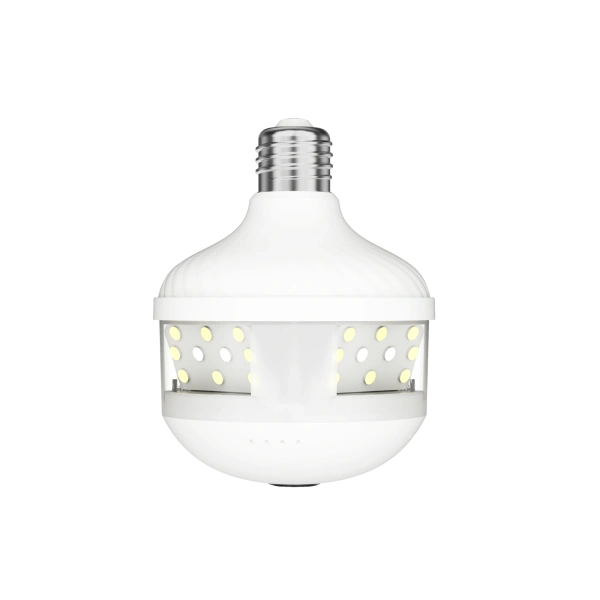
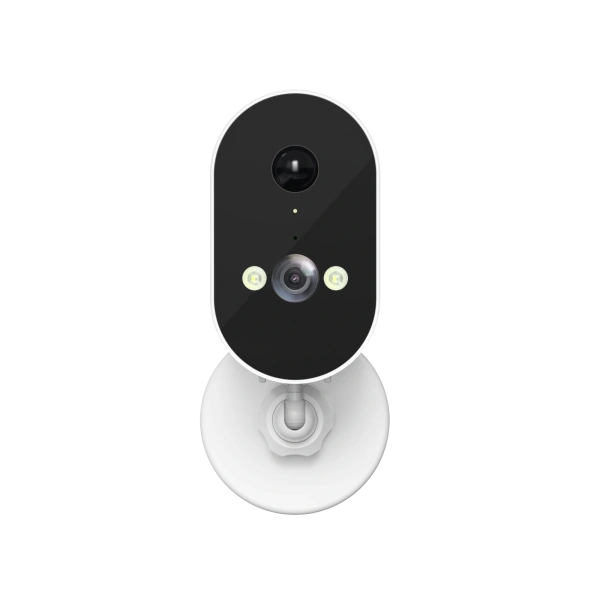
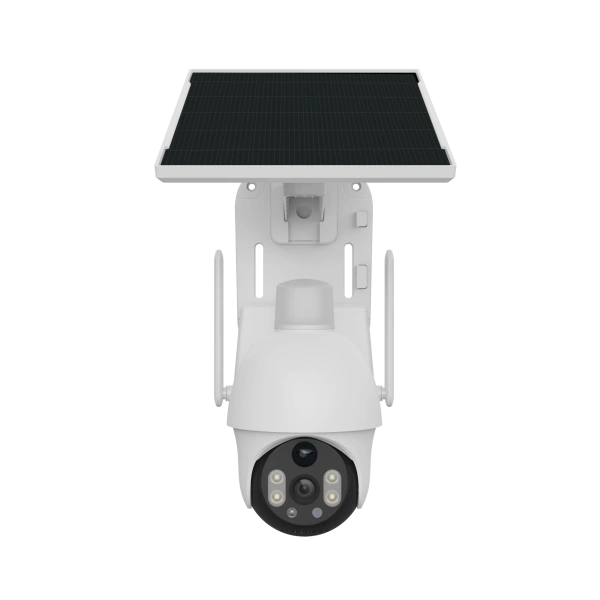
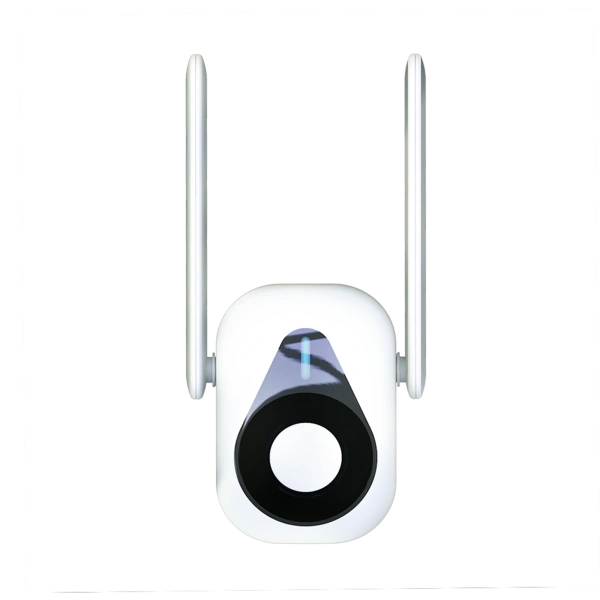
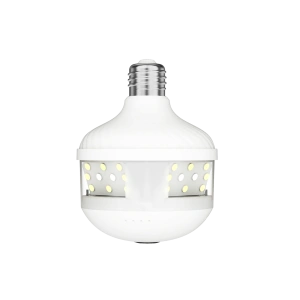
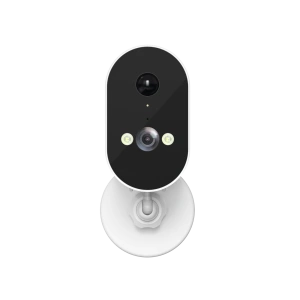
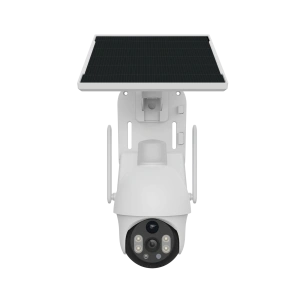
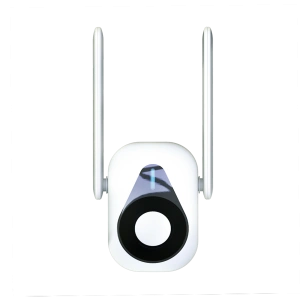
· Power on the camera and observe its status, press and hold the reset button for a few seconds, and then hear the camera prompt "Reset completed". Open the APP, click the "+" button in the upper right corner of the device list to add the device, and continue to operate according to the system prompts. If there is no QR code or the QR code is damaged, click [Can't find the QR code on the device]
· Follow the camera's voice prompts to select the network configuration method, and continue the operation according to the system prompt
1. If the voice prompts "Please scan the QR code on the camera", select [QR code connection]
2. If the voice prompts "Access point ready", select [AP hotspot connection]
3. If the voice prompts "Bluetooth is ready", select [Bluetooth connection]
4. If the voice prompts "WiFi connecting" does not respond, please restore the camera to factory default settings and reconnect according to the above steps
5. If the voice prompts "Network connected" after power on, select [LAN connection] to search for the device and add it



Follow V380