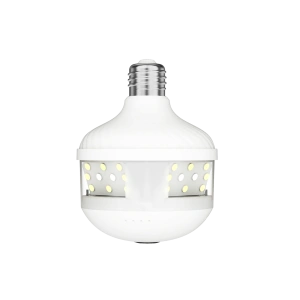
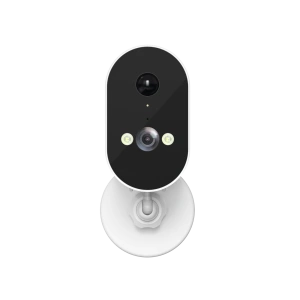
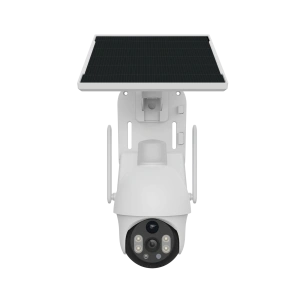
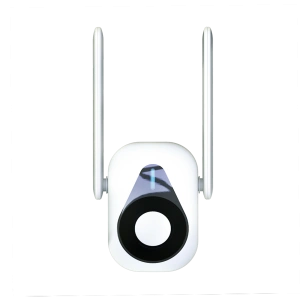
Preparation before configuration:
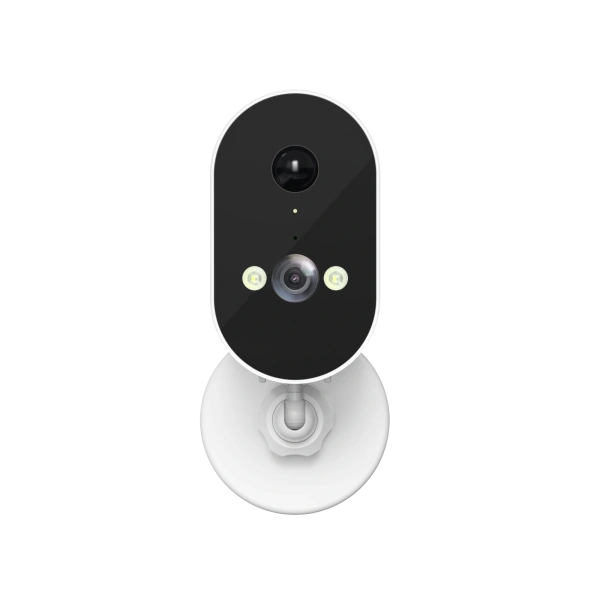
1) Power on the camera, press and hold the reset button for a few seconds, and then hear the camera voice prompts " Restore factory default settings - access point preparing - access point ready". When the (MV+ID/HSC+ID) hotspot signal is found in the WiFi list of the mobile phone, it means that the device is in the waiting configuration state
Note: The voice prompts may be different, please refer to the actual prompts of the camera
Configuration steps:
1) Click the "+" button in the upper right corner of the device list, select [Add Camera]
2) Scan the QR code on the device or swipe up the bottom and select [Wi-Fi Camera]-[AP hotspot connection], and follow the system prompts to continue operation
3) The system automatically obtains the currently connected WiFi, enter the WiFi password, and click [Confirm]
4) Click [Connect AP spot] or enter the mobile phone system [Settings], select [Wi-Fi], connect to the device hotspot (MV+ID/HSC+ID), and the device will automatically connect to WiFi after returning to the app
5) The camera's voice prompts "WiFi connecting - WiFi connected" to indicate that the configuration is successful, and the APP prompts "Completed"



Follow V380